

Overview
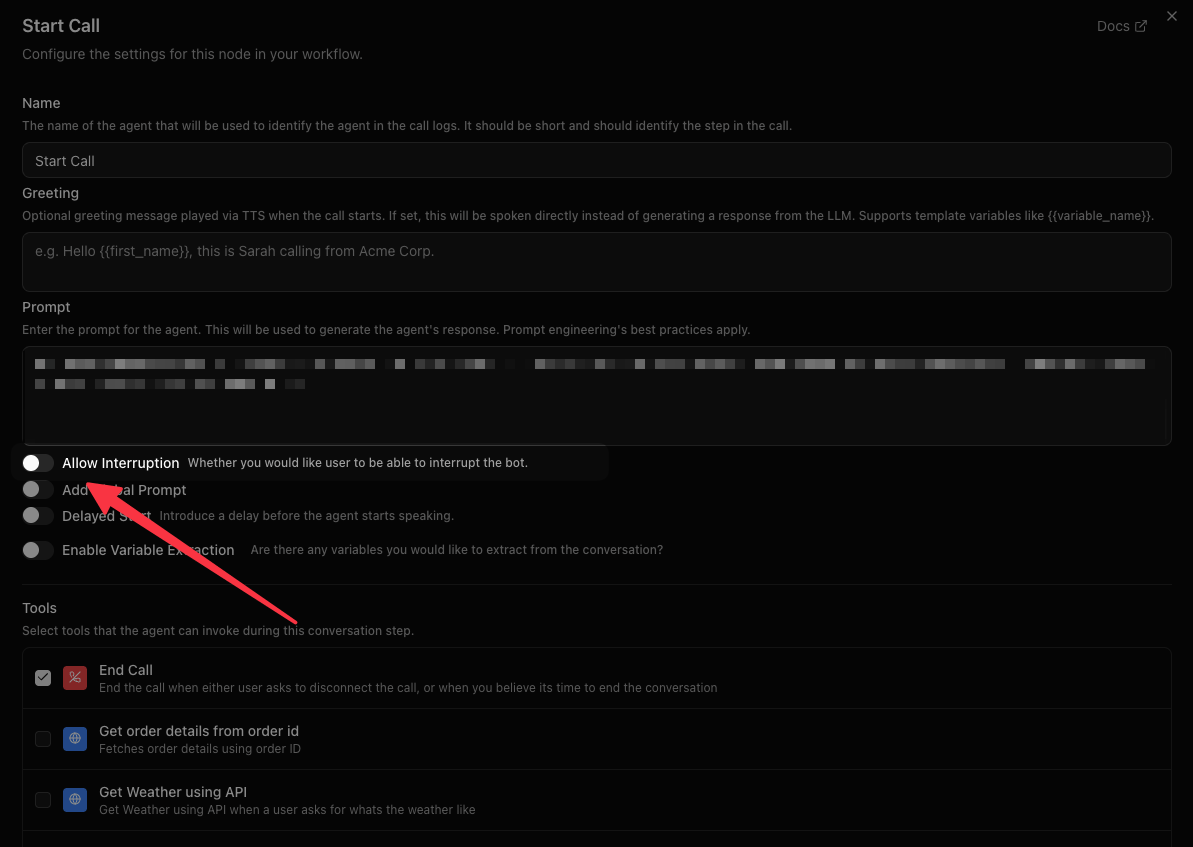
Two kinds of settings shape how the caller and the agent take turns:- Per node – the Allow Interruption toggle decides whether the caller can “barge in” and cut the agent off during that step. It is set in the workflow editor, giving you fine-grained control over conversation flow.
- Per agent – three turn-taking settings decide how easily the caller can interrupt, how long the agent waits before it replies, and how much sound counts as the caller still talking.
What is VAD?
VAD (Voice Activity Detection) is what makes barge-in possible – it’s the model that listens to the incoming audio stream and decides whether the caller is currently speaking. Bananaflow’s pipeline runs Silero VAD by default to detect the start and end of user speech in real time. When Allow Interruption is enabled on a node, the agent’s interruption setting decides what cuts the bot off. The agent’s sound sensitivity decides how much sound VAD treats as speech. When interruption is disabled, the user’s audio is muted until the bot finishes speaking. VAD also feeds turn-taking more generally – it’s part of how Bananaflow decides a caller has finished a turn and the agent should respond, independent of whether interruption is enabled.How It Works
Each node in your workflow has an Allow Interruption toggle:- Disabled (default) – The bot finishes its entire response before accepting user input. The user’s microphone is temporarily muted while the bot speaks.
- Enabled – The user can cut the bot off, and the bot then responds to what they said. What counts as cutting it off is set per agent, as described in How easily can the caller interrupt the agent?
When interruption is disabled and the user tries to speak during bot speech, a one-time warning appears in the live transcript indicating that interruption is disabled for that step.
When to Disable Interruption
Disabling interruption is useful when the bot needs to deliver a complete message without being cut off:- Legal disclaimers – Ensure the full disclaimer is spoken before proceeding.
- Critical instructions – Step-by-step directions that lose meaning if partially heard.
- Greeting or introduction – Let the bot finish its opening before the user responds.
- Confirmation summaries – Read back important details (appointment times, order totals) in full.
When to Enable Interruption
Keep interruption enabled for interactive conversation stages:- Q&A or objection handling – Let the user jump in naturally.
- Open-ended discussion – Feels more human when either party can interject.
- Long responses – Allow the user to redirect if the bot goes off track.
Configuring Interruption
- Open your workflow in the Voice Agent Builder.
- Select the node you want to configure.
- Toggle Allow Interruption on or off in the node settings panel.
- Save your workflow.
What the User Experiences
When interruption is disabled, the platform mutes the user’s audio input while the bot is speaking. Once the bot finishes, the microphone is automatically unmuted and the user can respond normally.
Turn-taking settings (per agent)
Open the agent, go to Settings, then Voice & conversation. Each of these settings is a question with three steps. The middle step is the default, so an agent behaves as it always did until you pick another step. As with any settings change, publish the agent for it to reach live calls.How easily can the caller interrupt the agent?
Found under Interruption. It decides what cuts the agent off on nodes where Allow Interruption is on.
Which words are acknowledgements and which are stop words is set per language. See Words that never interrupt and words that stop the agent.
The greeting is stricter. It always needs at least two words to stop it, so on Easily a lone “mhm” still lets the agent finish its opening line. On Only clear interruptions, the greeting needs three words, like the rest of the call.
Custom
An agent set up before these steps existed may hold a value that matches no step: either any sound stops the agent, or a word count other than one, two or three. The page then selects no step and says what the agent has, for example “Custom: 5 or more words stop the agent.” The value stays as it is until you pick a step. “Any sound” is no longer offered as a choice.How long should the agent wait before replying?
Found under Turn detection, below When the caller has finished speaking. It decides how long a caller may pause before the agent takes its turn.
Reply timing only applies when Bananaflow itself decides that the caller has finished. The page greys it out, and says why, when:
- the agent’s voice decides by itself when the caller has finished, because its speech recognition marks the end of each turn,
- the agent uses a realtime voice, or
- When the caller has finished speaking is set to Smart Turn Analyzer, which makes that call on its own.
How much sound counts as the caller still talking?
Found under Sound sensitivity. It decides how readily VAD treats sound on the line as the caller speaking.AI checks (optional)
Two switches add an AI check on top of the steps above. Both are off by default. Both need Bananaflow-managed voices.
Your AI assistant can read and change these with the MCP server. Like any setting, they reach live calls only after you publish the agent.
When these settings apply
- Realtime voices handle turn-taking themselves. None of the three settings apply to them, and the page greys all three out.
- A transfer keeps them. The settings of the agent the call starts with hold for the whole call. After a Transfer to Agent, the call keeps them, and the next agent’s own settings for these three do not apply.
Exact values
Exact values
These are the values each step sets. How long the agent takes to reply also depends on how quickly the speech-to-text model settles on the caller’s last words, so the reply timing values are the shortest wait, not a promise.
Words that never interrupt and words that stop the agent
Found under Settings, then Voice & conversation, then Interruption, below the steps. Each language the agent speaks has a card with two lists.When the lists count
The lists count while the agent is talking or getting a reply ready. When the agent is waiting for the caller, any word is a normal answer. So a caller who says “ok” to a question is heard as saying ok. A call uses the lists of all the agent’s languages together. The lists come from the agent version the call started on. After a Transfer to Agent, the languages follow the agent now speaking. An agent that does not set its languages, such as one that uses your own providers, lists all 11 languages, closed. Open a language to edit it. Realtime voices handle turn-taking themselves, so the lists do not apply to them, and the page greys them out.Starter lists
Every language starts with a starter list: Bengali, English, Gujarati, Hindi, Kannada, Malayalam, Marathi, Odia, Punjabi, Tamil and Telugu. The Hindi, English and Malayalam lists were built from real calls. The others are reviewed and improved over time. A language you have not edited always uses the current starter list.Editing a language
- Type a word or phrase and press Enter, or paste a list split by commas or new lines.
- Once you change either list, the agent keeps your version of both lists for that language. It no longer follows the starter list.
- Reset to starter list puts the language back on its starter list.
As with any settings change, save and then publish the agent for the new lists to reach live calls.