

Overview
The Tuner integration node automatically sends your completed call data (transcript, metadata, and call outcomes) to Tuner after each call finishes. This lets you monitor agent performance, run evaluations, and track quality trends without any custom code. Once the node is configured, you can also let Tuner call your agent with generated caller scenarios and score how it handles them – see Simulations below.Prerequisites
- A Tuner account with an active workspace
- A Bananaflow voice agent workflow
Setup
1. Create an agent in Tuner
Log in to Tuner and create a new agent. When configuring the agent, set the Provider to Bananaflow. Enter your Agent Name and choose the Call Direction (Inbound or Outbound) for your setup. The Agent Remote ID is auto-generated after you create the agent.2. Gather your Tuner credentials
You’ll need three values from your Tuner account:
Agent Remote ID – open Agent Settings for your agent.
Workspace ID and API Key – open Workspace Settings.
3. Add the Tuner node to your workflow
In your Bananaflow workflow editor, click Add node and scroll to the Integrations section. Select Tuner. Scroll to Integrations and select Tuner: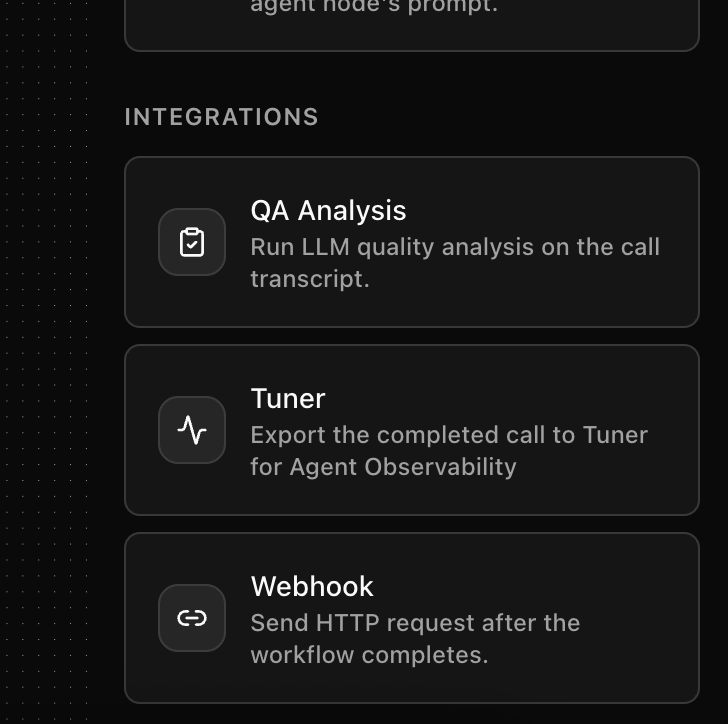
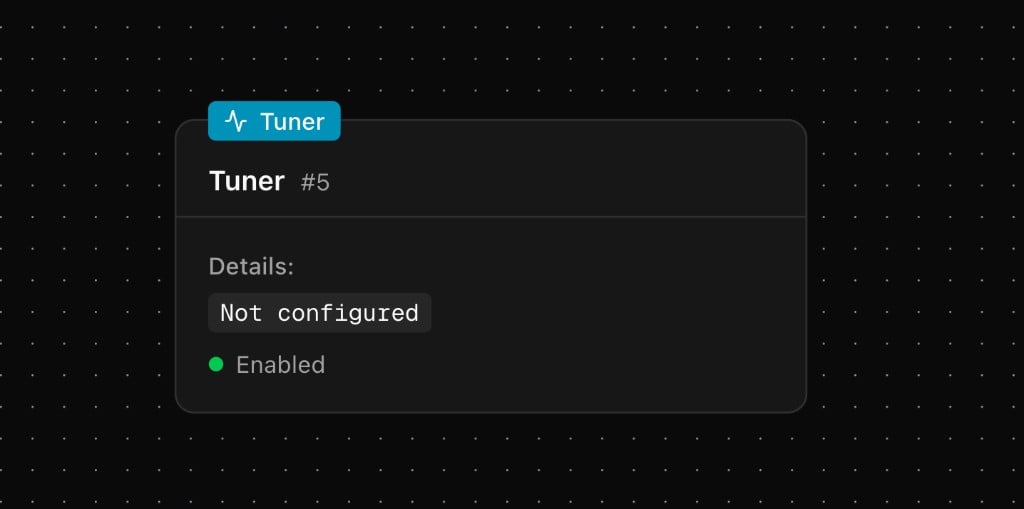
4. Configure the node
Click on the Tuner node and fill in the following fields:- Tuner Agent ID – The Agent Remote ID from Tuner
- Tuner Workspace ID – Your numeric workspace ID
- Tuner API Key – Your workspace API key
- Enabled – Toggle on to activate the export
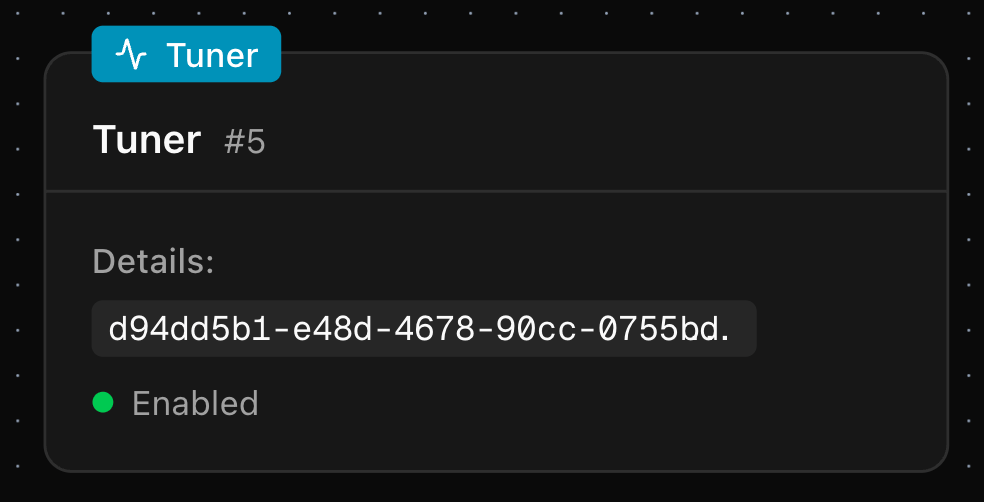
5. Verify the connection
Make a test call through your agent. Once the call completes, check the Call Logs tab in your Tuner agent dashboard. The call should appear within a few moments.Simulations
Everything above sends real calls to Tuner. Simulations run the other direction: Tuner places a call into your agent over SIP, plays the part of a caller following a generated scenario, and scores the result. Your agent answers exactly as it would for a customer. Bananaflow does not speak SIP itself. Cloudonix does it on Bananaflow’s behalf, on a Cloudonix domain in your own Cloudonix account. So the address Tuner dials belongs to your Cloudonix domain, and what you set up below is a route through it to one specific agent.Simulations use the inbound path of a Cloudonix telephony configuration
that you connect with your own Cloudonix account. Bananaflow does not provide
a SIP domain, and does not create a telephony configuration for you. Set one
up first by following Cloudonix Integration.
Before you start
- The Tuner node configured and enabled on your workflow, as set up above
- A Cloudonix telephony configuration in Bananaflow, connected to your own Cloudonix domain
- In Tuner, the same agent with its Call Direction set to Inbound
- An agent that already works – test it from the agent editor first
1. Add an extension for simulations
Go to Telephony configurations and open your Cloudonix configuration. Under Phone numbers, choose Add phone number and enter a short extension such as9001.
You do not need a real phone number. That field accepts SIP URIs and plain extensions alongside PSTN numbers, and an extension is the simplest thing to point a simulation at. In the Cloudonix console, add the same extension as a DNID on the Voice Application Bananaflow uses, as described in Inbound Calling Setup.
2. Point the extension at your agent
Edit the extension you just added, set its Inbound workflow to the agent that should answer, and save. This decides which agent answers calls to that extension, and saving pushes Bananaflow’s webhook URL to your Voice Application.3. Publish the workflow
In the workflow editor, choose Save, then Publish.4. Build the SIP URI
Expand SIP connectivity on the configuration page, choose your region, and copy the inbound hostname. Combine it with the extension from step 1:
Set the region before copying anything – every value on the panel is region-specific, and the port changes with it:
Unless you turn on SIP authentication on your Cloudonix domain, your inbound
hostname accepts calls without a password, and being unguessable is what
protects it. Treat it as sensitive and share it only with systems that
need to call your agents.
5. Save the URI in Tuner
In Tuner, open Agent Settings → SIP Settings, paste the address into SIP URI, and choose Verify & Save. Tuner immediately places a short test call, so this single action checks the whole path. Leave Username and Password empty, unless you turned on SIP authentication for inbound calls on your Cloudonix domain.Known issue in Tuner. With both auth fields blank, verification currently
fails with “endpoint did not answer”. Entering any non-empty values – for
example
tuner and tuner, works around it. A domain without SIP
authentication never checks them, so the values are irrelevant. Clear both
fields once Tuner ships the fix.6. Run a simulation
Start a run from Tuner’s Simulations tab. Each scenario becomes a real call into your agent, and completed calls appear in that table with transcript, latency, and evaluation results.How calls are matched to scenarios
Nothing to configure – this is automatic. Cloudonix reports the caller’s SIP call id to Bananaflow, and Bananaflow includes it when it exports the finished call. Tuner uses it to attach the call to the scenario that placed it. Without it, the call would still be ingested, just filed as ordinary production traffic.Disabling the integration
To temporarily stop exporting calls to Tuner, open the Tuner node configuration and toggle Enabled off. Your credentials are preserved – toggle it back on anytime to resume.Troubleshooting
Simulation issues
Learn more
- Tuner – The observability, simulation, and testing layer for voice
- Tuner documentation – Complete Tuner platform docs